Send your way
Right-click files in Explorer and choose Send to Kindle with Voltura Books. Or open Voltura Books from Start.
 Voltura Books
Read, browse, and send
Your ebooks, documents, and images, in one familiar Windows app. Open Browse books to read and view files on your PC, or send your next book to Kindle with a right-click.
Free · Designed for Windows 11 · No Voltura account
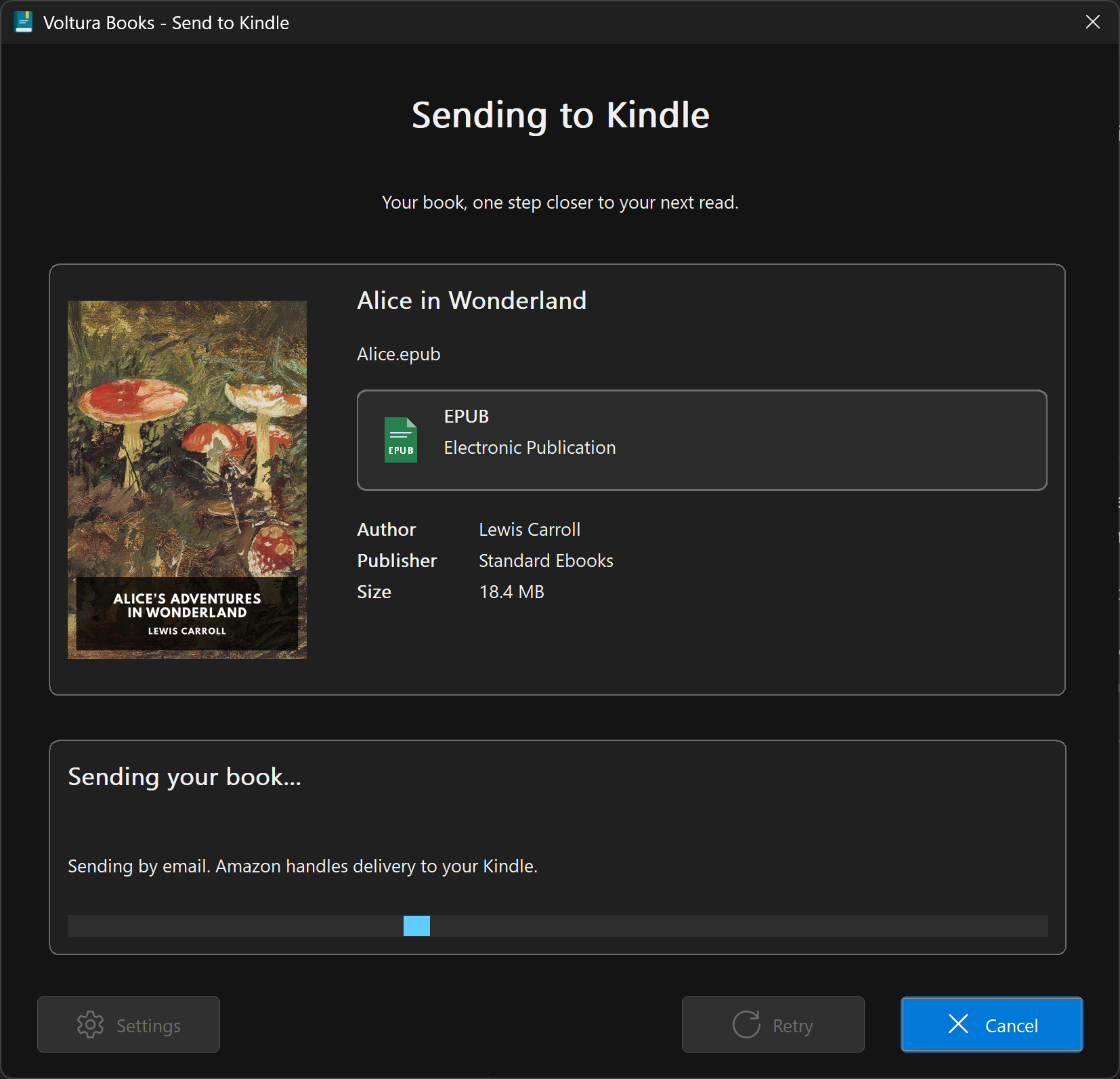
Right-click files in Explorer and choose Send to Kindle with Voltura Books. Or open Voltura Books from Start.
A standalone ebook and document reader. No Kindle or email setup needed.
Browse JPEG, PNG, GIF, and BMP pictures, then open a larger fullscreen view.
No new account, book library, or subscription to manage.
Browse books
Open Voltura Books - Browse books from Start, or right-click a folder in Explorer and choose Show more options → Browse with Voltura Books. The selected folder opens directly and is remembered for next time. Reading stays on your PC. Sending is there when you want it.
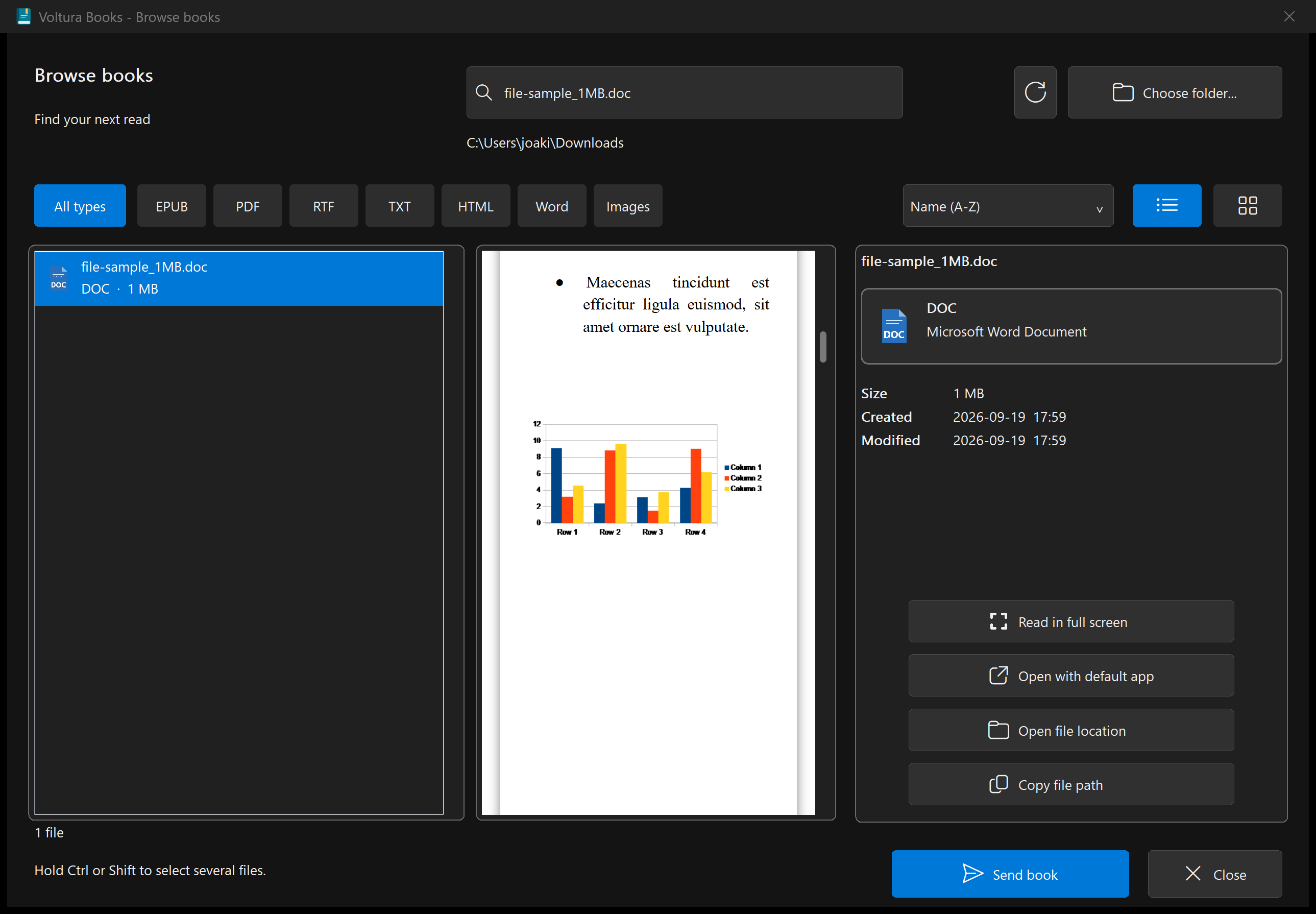
Read EPUB, PDF, DOC, DOCX, RTF, TXT, and HTML files. View JPEG, PNG, GIF, and BMP images. Word documents show supported formatting, tables, and embedded pictures without Word or LibreOffice.
Use the edge controls or arrow keys to move through a document. Press F11 for fullscreen and Esc to return. Keep your place when resizing or switching views.
Return to your last chosen folder. Switch between lists and cover tiles, search by filename, filter by format, and sort by name or date to find your next read.
At home in light or dark mode, following your Windows appearance. Supported formats and reading requirements.
Send to Kindle in three steps
Prefer to read on your PC? Open Browse books and skip the email setup.
Install the app and enter your Kindle and sender email addresses. Approve your sender address with Amazon.
In Explorer, select one or more files, then right-click → Show more options → Send to Kindle with Voltura Books.
Or right-click a folder → Show more options → Browse with Voltura Books to explore it first. You can also open Voltura Books from Start.
Follow the progress in the app. Amazon delivers your books to your Kindle; this may take a few minutes.
Drag, drop, or browse
Open Voltura Books - Send a book from Start. Choose the way that feels easiest to you.
Drop it into the window, or select Choose files. You can send one book or several together.
Select Browse folder to explore covers and book details, or launch Browse books directly from Start. Read before you decide what to send.
Switch between a list and cover thumbnails. Search by filename, sort by name or modified date, and filter by file type. Hold Ctrl or Shift to select several files; they’ll send one at a time. Available details include title, author, publisher, size, and file dates.
Get a reminder if you’ve already sent the same book. If you open more files during a send, the app asks whether to add them after the current books.
Common questions
Yes. Open Voltura Books - Browse books from Start. You don’t need a Kindle, email settings, or a Voltura account to read local files and view images. Reading and fullscreen previews never send emails.
The built-in reader supports EPUB, PDF, Word 97–2003 DOC, DOCX, RTF, TXT, and HTML/HTM. The image viewer supports JPEG, PNG, GIF, and BMP; animated GIFs show their first frame. Supported document formatting and embedded images are preserved, though layout can differ from the original app. Word navigation moves by a screenful.
EPUB, HTML, DOC, and DOCX reading use Microsoft Edge WebView2, normally included with Windows 11. DOC conversion also uses .NET Framework 4.8, included with Windows 11. Word and LibreOffice are not required. Where available, choose Read as text if formatted reading fails, or Open with default app.
Protected or encrypted books, password-protected PDFs, and older or damaged DOC files aren’t supported by the built-in reader. Book scripts, external links, and remote resources are blocked. HTML displays embedded content without loading companion files.
Visit Amazon’s Content and Devices settings to find your Kindle’s Send-to-Kindle email address. In Personal Document Settings, add your sender email to the Approved Personal Document E-mail List.
EPUB books, PDF files, Word documents, and several other common formats. Choose one or several. Each file can be up to 50 MB; your email service may have a smaller limit. Password-protected or copy-protected documents may not work.
Sending pauses so you can try again, skip that book, or cancel the remaining books. Nothing is retried automatically. For several books, a summary tells you what was sent, skipped, or left unfinished.
Yes. Select Don't send emails in the Send a book window, then choose Test sending. You can browse and read supported files, or watch a simulated send. No email setup is needed for the simulation, and your sent-book history stays unchanged. Reading and fullscreen previews never send emails.
If you send through your email provider, yes. Some services, such as Gmail, require a special password for apps; the setup form explains what to use. There is also a direct sending option without a password, though it does not work on every network.
You’ll see a full-size placeholder cover with its file type. Missing information never prevents sending. Page counts appear only when available; most EPUB books do not have a fixed number of pages. Word page counts are the values saved in the file and may change when it is opened elsewhere.
The letters at the end of a filename tell you its format. For example, My book.epub is an EPUB book.
Preview availability does not determine whether a file can be sent. Amazon’s supported file types.
Designed and tested for Windows 11 on an x64 PC. Windows 10 compatibility has not been verified; some icons depend on fonts included with Windows 11. Windows 8 and 8.1 are not supported. Provider sending requires verified TLS encryption. Direct sending uses port 25 and may be unencrypted if the receiving server does not offer TLS. Networks and mail servers can block direct delivery.
Browser-based email sign-in (OAuth) is not supported. Each file is sent unchanged, without conversion or DRM removal. Amazon processes the file and may reject unsupported books. The maximum attachment size is 50,000,000 bytes, before email encoding; your provider may allow less.
It means the mail server accepted the email. Amazon still needs to process and deliver the book. If a connection fails after submission, check your Kindle before retrying so you do not send a duplicate.
Your settings and sent-book history are stored locally. Passwords use Windows Credential Manager. There is no Voltura account or telemetry. Automatic email setup sends only your email domain to Thunderbird’s configuration service and may query DNS. Your book is sent through the delivery method you choose.
Open About in the Send a book window and choose Check for updates. The app downloads and verifies a newer version, then offers Install update when you are ready.
Open Voltura Books - Settings from Start. To remove it, go to Windows Settings → Apps → Installed apps → Voltura Books → Uninstall. Removal also deletes its settings, saved password, and sent history.
Free · Designed for Windows 11